
Website security is about protecting your website, the information it handles and the people who use it. It means keeping control of who can make changes, preventing unauthorised activity and being able to recover when something goes wrong.
That protection involves more than an SSL certificate or a malware scan. WordPress, its plugins and themes, account access, backups and hosting all need attention. A site can look normal while one of those parts is failing.
This guide covers 12 warning signs and causes of WordPress website problems, including nulled plugins, malicious redirects, SEO spam, recurring malware and failed enquiries. For each, we explain what to check, how to approach a repair and what evidence to ask for afterwards. The examples are illustrative, not accounts of an identifiable client's incident.
1. A working homepage does not tell the whole story
A website owner opens their homepage, sees the right logo and carries on with the day. Meanwhile, a customer arriving from Google lands on a gambling advert. Another customer submits an enquiry that never reaches the business. Both can be true at the same time.
These are the kinds of problems businesses bring to Faciotech for help: unfamiliar pages in search results, redirects nobody authorised, a warning from a hosting company, or a WordPress administrator nobody recognises. The support conversation often starts with a screenshot and a fairly reasonable question: how can something be wrong when the website still opens?
Download the complete ten-page WordPress security guide (PDF).
Contents: choose the problem you need to solve
- Untrusted premium software: start with section 2 on nulled plugins and themes.
- Old software or updates that keep failing: go to section 3.
- Strange Google results or unwanted redirects: section 4 covers both.
- Unknown administrators or suspicious logins: review section 5.
- Malware returns, or several sites are affected: use section 6.
- Browser warnings or hosting suspension: begin with section 7.
- A backup did not solve the problem: read section 8.
- Missing enquiries, broken checkout emails or HTTPS errors: see section 9.
- You want a maintenance plan or safer hosting: section 10 explains scanning, responsibilities and next steps.
Before changing anything, preserve the evidence. Record the affected address, the time, the device and how the visitor reached it. Save a screenshot without exposing customer information. Ask your host to preserve relevant logs and take a restricted backup of the affected state. That backup is evidence; it is not automatically a clean recovery copy.
If visitors are being sent to scams or a payment page appears to have been altered, contact your host immediately and arrange containment. A simple maintenance page may be appropriate, but a WordPress maintenance plugin alone cannot reliably contain code that already controls WordPress. Use a known contact channel for support, and do not dismiss a browser warning just to keep investigating.
A warning sign is a reason to investigate. It is not, by itself, proof of malware. A broken redirect rule, an expired certificate and a compromised plugin can produce different problems that look similar to a customer. Wordfence's recovery guide describes several of these signs; the steps below turn them into a practical support brief.
2. Nulled plugins and themes: check where the software came from
The conversation about a suspicious website should include a very ordinary question: where did each plugin come from? A premium plugin acquired through a random download site, a shared ZIP file or an unexplained lifetime bundle deserves closer attention.
Issue 1: the website contains software whose source cannot be trusted. A nulled plugin or theme is commonly a redistributed premium product that has been modified, often to bypass its licensing or update mechanisms. The security concern is the unknown code and broken chain of trust. Free software from a reputable source is not the same thing. A legitimate free plugin can be an excellent choice, and a missing licence receipt alone does not prove infection.
There is documented evidence behind this concern. In September 2025, Wordfence described tampered premium plugins that could interfere with a security plugin, create or elevate administrator accounts, and conceal parts of the security interface. That was a particular campaign, not evidence that every cheap plugin behaves that way. It does show why a familiar plugin name and a reassuring dashboard are insufficient checks. Read the Wordfence investigation.
Build a short software inventory. For every plugin and theme, record its name, installed version, purpose, download source, licence owner where relevant, and who maintains it. Ask your developer which subscriptions belong to your business and which belong to their agency. An agency licence can be legitimate; the handover should explain what happens when the relationship ends.
Watch for unexplained changes to product names, missing update notices, instructions to disable security checks, and plugins that do not appear in the normal list even though their files are present. None of these observations should trigger blind deletion. Give the inventory and suspicious files to the person investigating the site.
How to fix it
- Preserve a copy for investigation and identify which pages, forms or layouts depend on the suspect product.
- Obtain a clean replacement from the original developer or the official WordPress directory. Use a supported free alternative when the paid feature is unnecessary.
- Prepare the replacement on an isolated staging copy. Export legitimate settings carefully; do not assume an export from an infected site is trustworthy.
- Remove the untrusted package as part of a wider cleanup. Review the rest of the installation, database, administrator accounts and scheduled tasks for changes it may have made.
- Restore a supported update path and document who owns the subscription and renewal.
How to verify the repair: ask for the replacement's source, version and working update mechanism, together with the cleanup findings. Test the pages that depended on it. A new licence key entered into the old, altered files does not demonstrate that those files have become clean.
For a new website, make the software inventory part of acceptance. You should be able to identify the origin of the code your business will depend on. WordPress's official hardening guidance recommends obtaining plugins and themes from trusted sources. Our guide on when a business needs custom software instead of another plugin can help when the site has accumulated too many overlapping tools.
3. Outdated software and updates that never quite happen
Issue 2: WordPress, a theme or a plugin has an unresolved security or maintenance problem. A plugin can work exactly as expected while a vulnerability allows an unauthorised action. Functional testing and security review answer different questions.
An available update is not automatically a security emergency. Read the release notes and any vendor advisory. If the installed version is affected by a known vulnerability, identify the fixed version and the conditions needed to exploit it. That gives the person responsible a basis for prioritising the work.
Do not assume that a quiet dashboard means every dependency is current. Commercial products may need an active subscription to fetch updates. An abandoned plugin may have no new version to offer. A failed background update may leave the old version installed while nobody reads the notification.
Start in Dashboard > Updates, then review Plugins and Appearance > Themes. Note the installed versions and compare them with the original publishers' records. The WordPress Updates screen documentation explains the separate core, plugin and theme controls. Include inactive products in the inventory: keeping their files installed is different from removing them.
A practical update process
- Confirm that a recent backup can be restored. Record what changed since that backup, especially orders or registrations.
- Test the update on a staging copy with outbound email and live payment actions disabled. Keep that copy access-controlled.
- Check the homepage, an important landing page, navigation, mobile layout, login and the forms or purchase flow affected by the update.
- Schedule the live change with someone available to respond. Record the versions before and after.
- Check the result and read the error logs. Keep the rollback copy until the updated site has passed its checks.
WordPress documents both core updating and plugin updates and automatic update controls. Automatic updates can reduce delay, but someone still needs to notice a failure. Choose settings according to the site's dependencies and ability to recover, then verify what actually ran.
If a vulnerable plugin has no fix, consider replacing or removing it. Where it supports an essential function, your developer should explain the temporary containment, the replacement plan and the remaining exposure. A firewall rule can sometimes reduce exposure while a fix is prepared; it does not make the underlying code permanently safe.
How to verify the repair: ask for the installed version after the change, the relevant advisory or release note, and the functional checks that passed. “All updated” is a weak handover if nobody checked whether the contact form still works.
Separate urgent security work from routine housekeeping in your maintenance agreement. A critical advisory should not sit unnoticed until next month's design meeting. Name the person who receives alerts, the person who applies changes, and the person who checks the business functions afterwards.
Faciotech's website maintenance service is relevant when you need an accountable owner for that work. Agree the update scope, response expectations, backup arrangements and checks for your particular website before the work starts.
4. Spam in Google and redirects your customers see first
Issue 3: Google lists pages your business never published. You may see unrelated product offers, unfamiliar languages or page titles that have nothing to do with your services. Attackers can add pages, inject links into legitimate pages, or serve different content to different visitors. Google describes these patterns in its policies on hacked content and cloaking.
A search for site:yourdomain.example is a useful spot check, but it is not a complete inventory of indexed pages. Record suspicious results and use your verified Search Console property to inspect specific addresses. Check recently changed pages, sitemap entries and content that exists outside the normal Posts screen.
Repair the website before chasing the search result. Remove the injected material, close the access route and regenerate clean sitemaps. Legitimate pages should retain their useful content and address where possible. Spam-only URLs with no legitimate replacement should return a proper 404 or 410 response. Redirecting every unwanted URL to the homepage can leave misleading behaviour instead of resolving it. Google's crawl troubleshooting guidance explains how to handle removed pages.
The Search Console Removals tool can temporarily hide results while the underlying removal takes effect. It does not remove the malware or permanently fix the page. Follow Google's removal guidance and avoid blocking a URL in a way that prevents Google from seeing the corrective response.
Issue 4: some visitors are redirected to another website. The owner may be logged in and unaffected. A first-time mobile visitor, or someone arriving from a search result, may see a different response. A useful investigation starts with the visitor's exact route, not an argument about whether the homepage loads on your laptop.
Ask for the original link, the unexpected destination, the time and whether it happened once or repeatedly. Do not ask customers to revisit a dangerous page. A developer can reproduce the journey in an isolated browser and inspect the redirect chain, loaded scripts and server responses. Wordfence documents visitor-specific redirects as a possible symptom of compromise.
Possible locations include theme files, plugins, database content, advertising scripts, redirect settings and rules at the hosting or CDN layer. A configuration mistake is also possible. Review those locations against the intended behaviour and change history before deciding what to remove.
How to fix and verify both problems
- Preserve representative URLs and the relevant logs; establish which content and requests are affected.
- Clean the responsible files, content or rules and address the vulnerability or stolen access behind them.
- Review the other pages and sites within the affected access boundary.
- Clear the relevant application and CDN caches after the origin is clean, then inspect fresh responses.
- Check the reported journey on desktop and mobile, including a signed-out session and the original entry route.
- Track Search Console after cleanup. Search results can lag behind changes; a stale result and fresh reinfection need different responses.
Write down which unwanted URLs now return a removal response and which legitimate pages remain available. That record makes follow-up easier than relying on a screenshot of one clean homepage. For the ongoing search work, our article on website discoverability in Ghana explains why search visibility deserves regular attention.
5. Unknown administrators and stolen account access
Issue 5: an administrator appears without a clear owner. An unfamiliar name may belong to an agency or a former developer. It may also be unauthorised. Verify who owns it through an established contact channel and check when and why it was created. An email address or a reassuring display name is not proof of authorisation.
WordPress assigns different capabilities to administrators, editors, authors and other roles. People who only publish content usually do not need permission to install plugins or manage other users. The official roles guide is a useful reference when deciding the smallest appropriate level of access.
Where compromise is suspected, reviewing the visible Users screen is a starting point. Ask the investigator to compare it with the underlying account records and inspect unexpected role changes. Preserve relevant account and activity details, then revoke unauthorised access. Consider content ownership before deleting an account so legitimate posts are not lost with it.
Also check the default role assigned to new registrations and any plugin that creates users. On a normal public registration flow, a new subscriber should not quietly become an administrator. Review developer access and temporary support accounts after the incident.
Issue 6: credentials or sessions have been stolen. Reusing a password across email, hosting and WordPress makes an incident harder to contain. An attacker who controls the recovery mailbox may be able to reset other accounts even after you change their passwords.
Work from a trusted, updated device. Secure the affected recovery email, hosting control panel, domain account and WordPress access in the order the investigator recommends. Rotate exposed credentials, revoke unauthorised application passwords or integration tokens, and invalidate existing sessions. Update legitimate integrations deliberately so a necessary password change does not silently stop forms or backups.
Use a password manager to create distinct passwords and enable two-factor authentication where supported. Keep recovery codes in a secure location separate from the account they recover. WordPress core does not provide built-in two-factor authentication, so the implementation depends on a suitable plugin or identity service. See WordPress's login protection guidance.
Two-factor authentication reduces several forms of account takeover, but it does not repair vulnerable code or revoke a stolen session by itself. OWASP's MFA guidance and authentication guidance explain why recovery, reauthentication and session handling matter as well.
Do not forget the connected accounts. Review Search Console owners, analytics and tag-management access, external backup accounts and deployment tools. Removing a Search Console user can leave a verification method that needs attention. Google's permissions guidance describes reviewing leftover ownership tokens.
How to verify the repair: every privileged account has a named owner and a current purpose; unauthorised sessions and tokens are revoked; authorised staff can still sign in; and recovery works for the business owner. Keep a dated access register and remove temporary access when the work ends.
For an ongoing staff process, read our guide to two-factor authentication for business operations. Treat access review as part of staff and supplier offboarding, not something you only remember after a warning.
6. Recurring malware and infections across several websites
Issue 7: the malware disappears, then returns. This often means the investigation has removed an effect without eliminating all the ways it can be recreated. Possible explanations include a remaining backdoor, an unpatched vulnerability, a scheduled task, stolen account access or an infected restoration source.
A backdoor is an unauthorised way back into the website. It can be much less visible than a changed homepage. Wordfence's research on the WP-VCD campaign illustrates how malicious code distributed through untrusted themes and plugins can persist and spread. It is an older documented example, not a claim that it explains every current infection.
Keep a timeline. Record when the symptom first appeared, what was removed, when a clean check was completed, and when the symptom returned. Ask the investigator to correlate those events with file changes, logins, requests and scheduled jobs. The time that a file changed is a clue, not definitive evidence of when the first intrusion occurred.
Review the scope of the cleanup explicitly: WordPress core, active and inactive plugins, themes, uploads, must-use plugins, database content and options, scheduled tasks, web rules and account access. A tool that only inspected one folder cannot establish that everything outside that folder is safe.
Issue 8: several websites are affected. Sites that share writable files, credentials or the same operating-system account can share exposure. An old staging copy or abandoned installation may matter even when the main website is updated. Simply being on the same physical server does not prove that another customer infected you; the actual access boundaries need investigation.
Make an inventory of the production site, subdomains, staging copies, older installations and scheduled backup locations. Ask the host which account can write to each site. WordPress's hardening handbook discusses limiting access and containing damage; your provider should explain how those principles apply to your account.
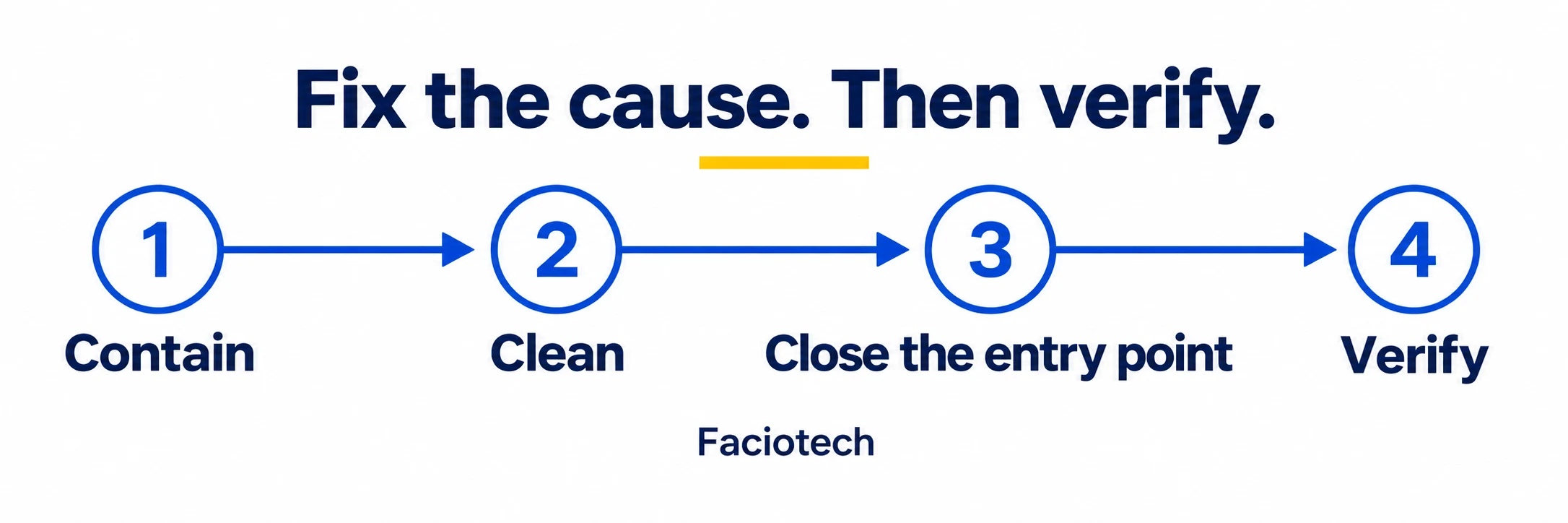
How to fix it: clean the whole affected scope, replace untrusted code, patch the entry point and revoke stolen access. Separate sites that should not be able to modify one another. Retire unused installations carefully after preserving anything the business needs. Ask the host to set permissions for the actual hosting setup rather than applying an arbitrary permissions recipe from an unrelated tutorial.
How to verify the repair: repeat scans with current definitions, review the known persistence locations, test the original failing journey and monitor for fresh unauthorised changes. Agree a follow-up period appropriate to the incident. An immediate clean result is a useful observation, not a guarantee about next week.
If the evidence does not establish the original cause, the repair report should say so and describe the controls added to reduce the remaining uncertainty. A plausible explanation presented as a proven cause can send the next investigation in the wrong direction.
Moving providers can help when the hosting environment or support arrangement is unsuitable. It will not automatically clean the files you migrate. Arrange an assessment before using Faciotech's website migration service for an affected site.
7. Browser warnings and a suspended hosting account
Issue 9: a browser, search engine or hosting provider flags the website. A browser warning can relate to malware, phishing or deceptive content. A certificate warning is a different problem, covered in section 9. Start by recording the exact wording, the affected URL and the authority that issued the warning.
Go directly to the official Search Console site through your usual sign-in route. Select the correct property and open Security & Manual Actions > Security issues. Treat URLs supplied in the report as examples to investigate, not a guarantee that every affected page has been listed. Google's Security Issues report documentation explains the issue types and review process.
A site can be flagged because of deceptive embedded content as well as content the owner deliberately published. For example, an outside advertisement or embedded resource may display a fake download prompt. Google's social engineering guidance includes embedded content in the site's responsibilities. Inspect what visitors actually receive.
When hosting is suspended, request a precise incident report. Ask what was detected, which files or activity were involved, when the detection occurred, what was quarantined or blocked, and what conditions must be met for restoration. The host may restrict access to protect visitors or other accounts. Agree how the investigator will obtain evidence without reopening the unsafe website.
Confirm the warning through the provider's known support portal. An unexpected email demanding payment for a cleanup is not sufficient evidence that the provider sent it. Do not share your hosting password or a database export with someone solely because they claim to have found malware.
A sensible recovery sequence
- Contain the affected service and preserve the evidence and a restricted copy.
- Investigate all examples in the report and the wider patterns they reveal.
- Clean malicious content and repair the access route. Review embedded services where relevant.
- Run fresh checks and verify the affected customer journeys.
- Provide the host with the requested evidence for reinstatement.
- When Google's Security Issues report requires it, submit a review describing the problem and the corrective work.
Manual actions and security issues are separate Search Console reports. Use the process attached to the actual finding. A sitemap submission or an indexing request is not a substitute for a security review. Avoid repeated premature review requests while cleanup is still in progress.
How to verify the repair: the original harmful behaviour is gone, the provider has accepted the remediation, and the relevant warning or report has cleared after review. Search and browser systems do not all update instantly. Nobody should promise an exact removal time or a guaranteed return to previous rankings.
While the site is restricted, give customers a trusted alternative way to contact the business. Keep the update factual: what service is unavailable, where assistance is available, and when another update will follow. If the incident may involve customer information or payment data, involve the appropriate incident and professional advisers so communications reflect established facts.
Faciotech's support and consultation team can help scope a website assessment. Bring the original warning and affected addresses; there is no need to send a password in the first message.
8. Backups that are infected, incomplete or impossible to restore
Issue 10: the backup exists, but it does not provide a clean recovery. A backup can faithfully preserve malicious code. If the first visible symptom appears weeks after the intrusion, yesterday's copy may already contain the problem.
A file download is also not necessarily a complete WordPress backup. A typical recovery needs both the website files and the database, captured coherently. WordPress's backup handbook explains the difference. The normal Tools > Export feature produces a content export; it is not a complete copy of the installation, server settings and every plugin's data. See the export documentation.
Separate three things in the recovery discussion: the preserved incident copy, the candidate clean backup, and the restored test site. Label them clearly. Keep the incident copy restricted so nobody mistakenly restores it as the approved production version.
Choose a recovery point with the business owner. For a brochure site, losing yesterday's small text edit may be manageable. For a store, restoring an older database could remove legitimate orders, stock changes or customer accounts. Write down what changed after the candidate backup and decide how those records will be preserved or reconciled.
Test the restoration in isolation
- Confirm the backup date, what it contains and whether the archive can be read.
- Restore it into a restricted environment. Prevent it from sending customer emails, charging payments or triggering live integrations.
- Scan the restored files and data, and inspect the symptoms and persistence mechanisms found in the incident.
- Apply the necessary security fixes before reopening the site. Restoring an old vulnerable plugin without patching it can recreate the same exposure.
- Test the business functions, reconcile newer legitimate records, and agree the cutover and rollback procedure.
A recovery plan should specify both acceptable data loss and acceptable time offline. Those are often called the recovery point objective and recovery time objective. Put them in plain business language first: “We can re-enter a morning's enquiries” is a different requirement from “We cannot lose completed orders.”
Keep more than one recovery point and protect at least one copy from the same access that can alter the website. A copy inside the hosting account may be convenient, but it may also be reachable with the credentials involved in the incident. Access, retention, encryption and deletion protection all deserve a conversation with the provider.
How to verify the repair: keep a dated restoration record showing the backup used, the checks completed, the time taken and the legitimate data recovered. A successful backup job answers whether a copy was made. The restoration exercise answers whether the business can use it.
Our ArchiveX website backup offering is a useful place to discuss retention, recovery support and copies kept separately from the live website. Confirm the exact scope for your plan. WordPress also provides a practical lesson on backing up a site for owners who want to understand the process before agreeing a service.
9. Missing enquiries and HTTPS problems that look like security incidents
Issue 11: the form says “sent”, but nobody receives the enquiry. This can cost a business money while the website looks perfectly normal. Start with delivery and configuration checks; do not assume that missing email means the website has been hacked.
A form's success message may mean the application handed a message to its sending system. It does not prove that the recipient received it. The WordPress wp_mail documentation explicitly distinguishes a successful processing result from delivery.
Check the form's destination address, sender configuration and recent changes. Review the application's sending result, the email provider's delivery or rejection record, and the recipient's spam or quarantine folder. Trace one authorised test enquiry from submission through to the mailbox and, where applicable, the CRM. Keep the test content clearly identified and avoid unnecessary personal information.
Use a correctly configured sender on a domain you control. The visitor's address generally belongs in Reply-To, not as an impersonated From address. Contact Form 7's mail setup guidance explains its relevant fields. Your mail administrator should verify the sending service and domain authentication rather than adding several conflicting mail plugins.
For WooCommerce, separate an email that was never triggered from one that was generated but not delivered. The order state, notification settings, theme customisations and delivery provider may each matter. WooCommerce's email troubleshooting guide describes that distinction. Verify checkout and receipts in a payment provider's test environment when making repairs.
Issue 12: visitors see certificate errors, mixed content or a redirect loop. HTTPS encrypts the connection between browser and website. It does not certify that the site's application code is malware-free. An infected page can still be delivered over HTTPS.
Record whether the warning concerns certificate expiry, the hostname, an untrusted certificate chain or insecure resources loaded within an otherwise secure page. Different causes need different fixes. Do not tell customers to bypass the warning or turn certificate checks off.
Ask the host to verify the certificate and renewal process for the exact public hostname. Your developer should check WordPress's intended site address and any proxy or CDN redirect settings. For mixed content, locate the HTTP images, scripts or other resources and update them to supported HTTPS addresses. Back up first and use a WordPress-aware migration or replacement tool where stored data requires it.
MDN's mixed content guidance explains why browsers upgrade or block different insecure resources. Merely adding an SSL certificate does not rewrite every old link or resolve conflicting redirects.
How to verify the repairs: an authorised enquiry reaches the expected destination, the correct notification is generated, customers can reply, and the key pages load without certificate errors or blocked essential resources. Check the actual customer journey, including forms and checkout, after any URL or HTTPS change.
Faciotech can help with website maintenance and the hosting checks behind these problems. Once delivery is working, our article on why business websites fail to generate leads helps connect the enquiry to a useful follow-up process.
10. Choose useful scanning, then give the work an owner
Malware and antivirus scanners are useful parts of website protection. They look for known malicious patterns and other suspicious indicators. Their value depends on what they can inspect, how current their definitions are, whether the scan completes, and who responds to its findings.
A remote scanner sees what the website exposes publicly. A scanner operating within the hosting environment can inspect accessible files. A WordPress-aware tool may also compare official files, inspect selected database content or flag vulnerable components. Those capabilities differ by product and configuration. The ClamAV scanning documentation and Wordfence scan-results guide illustrate that difference.
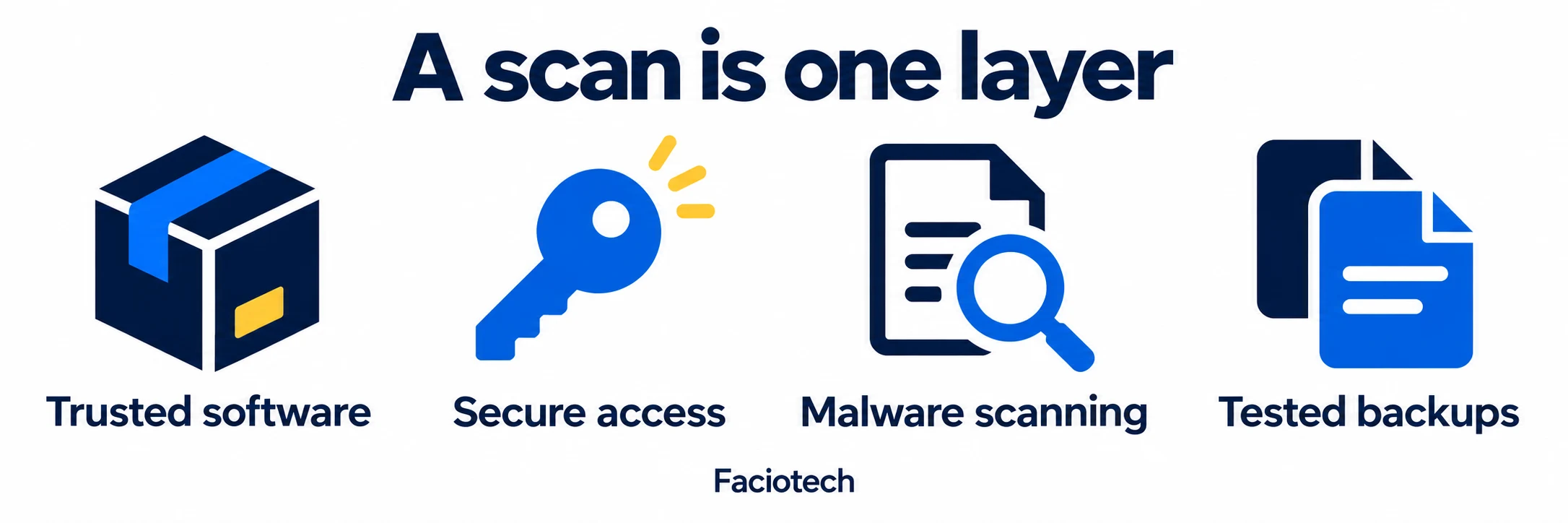
Read the report, not only the colour of the result. Ask when the scan ran, whether it completed, which areas were skipped, and what was ignored or quarantined. A false positive is possible. Replacing a modified file can also remove legitimate custom work, so preserve and review it before accepting an automatic repair.
Make maintenance a small, repeatable job. As a practical starting schedule, check alerts and failed backups each working day; review updates and test an enquiry weekly; review access and software ownership monthly; and carry out restoration exercises at an interval suited to the site's importance. Respond to urgent security advisories when they arrive. These intervals are a suggested operating routine, not a promise that a site is safe between checks.
How Faciotech can help. We offer WordPress hosting options with malware scanning, and can discuss antivirus scanning, cleanup and recovery requirements for your website. Our WordPress hosting page sets out the plans and lists malware removal for WP Pro. Review the current inclusion and support scope when choosing a plan. Scanning and ongoing WordPress maintenance should each have a clear owner.
For a straightforward business website, compare Faciotech shared hosting. For continuity and recovery, discuss ArchiveX backups. For regular application care, use website maintenance. If the site is already behaving strangely, contact Faciotech for an assessment and describe the symptom before arranging migration.
Can a website be infected while it still looks normal? Yes. A compromise may affect selected visitors, hidden pages, accounts or background activity. Investigate the reported behaviour and the underlying installation.
Will buying the original plugin fix an infected copy? A purchase restores access to a trusted source and, where included, updates. The affected files still need replacement and the wider site needs investigation.
Does a clean scan prove that everything is safe? It shows that the completed scan did not detect a problem within its scope. Combine that result with the incident findings, access review and functional checks.
Does moving to another host remove malware? A migration can move malicious code along with legitimate content. Plan assessment and cleanup as part of the move.
Your website should be checked where your customers use it: the search result, the form, the account and the payment journey. Opening the homepage is a start. The useful question is whether the rest of the business still works behind it.
Research reviewed 15 September 2026. Sources are linked beside the relevant guidance throughout this article. Illustrations are explanatory artwork, not client screenshots or scan results. For a shorter routine, see our website security checklist for Ghanaian SMEs.